


Is ChatGPT safe for your business? The short answer is yes, but only if you configure it properly.
Many businesses are already using AI tools to draft emails, summarize reports, analyze information, and speed up day-to-day work. The problem is that most teams start using these tools with the default settings untouched. That can create unnecessary privacy risk, weak output quality, and inconsistent results.
The good news is that a few quick changes can make ChatGPT much safer and much more useful. Three settings focus on protecting confidential business information. Two more help the tool produce better answers that actually fit your company and the task at hand.
The primary keyphrase here is ChatGPT safe for business, and that question really comes down to setup. If you are handling client conversations, pricing plans, internal files, employee information, supplier discussions, or financial data, these five settings deserve immediate attention.
Why default AI settings can be risky for businesses
Out of the box, many AI tools are configured to collect user interactions in ways that can improve future models. That might sound harmless, but in a business context, it can be serious.
If someone pastes confidential material into an AI chat while model training features are enabled, that information may be used to improve the provider’s systems. For a company, this could include customer details, pricing logic, contract drafts, employee assessments, or operational documents.
A useful mental check is simple: if you would not leave the information open in a public place or discuss it in front of strangers, do not drop it into an AI tool without checking the privacy settings first.
1. Turn off model training in ChatGPT and other AI tools
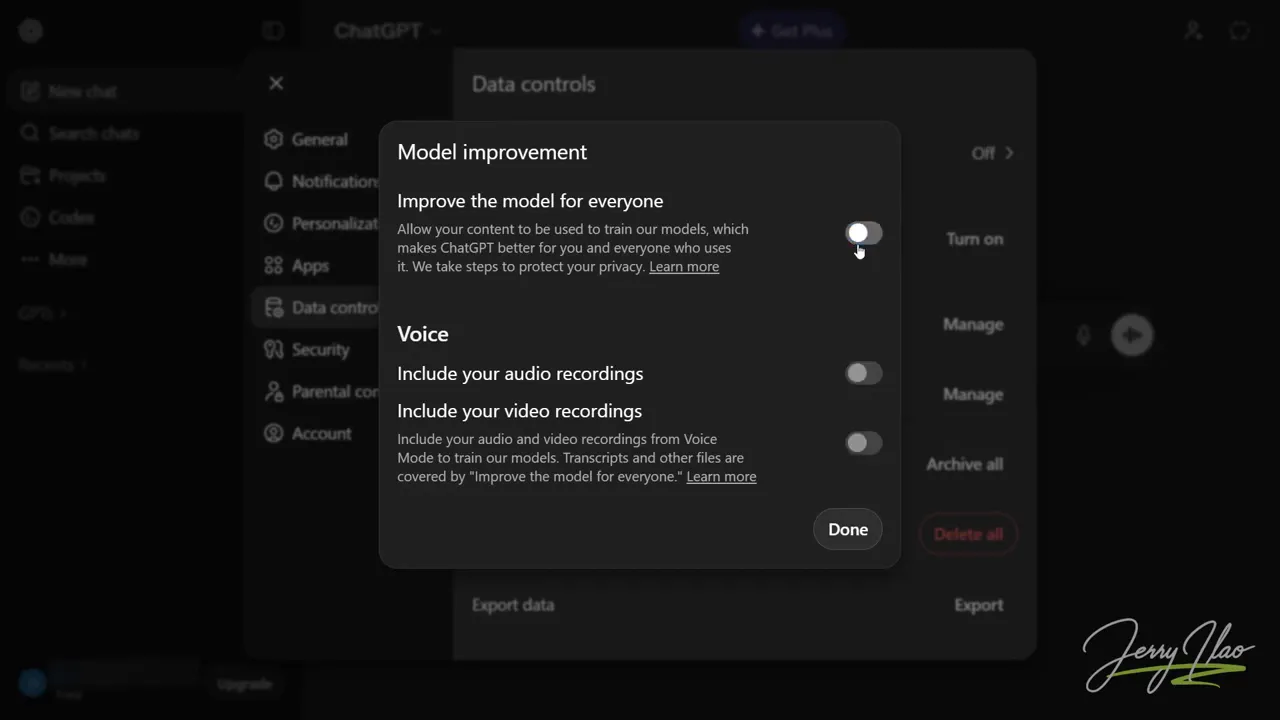
The most important setting to change is the one that controls whether your conversations can be used to improve the model.
In ChatGPT, go to Settings, then Data Controls, and find the option labeled Improve the model for everyone. Turn it off.
This matters because the setting is commonly enabled by default for standard users. If left on, conversations may contribute to future model training. For a business, that means sensitive information could be exposed to a process you never intended to participate in.
This is not only a ChatGPT issue. Similar settings also exist in other major AI products:
- Claude: Open Settings, then Privacy, and disable the option that helps improve the product.
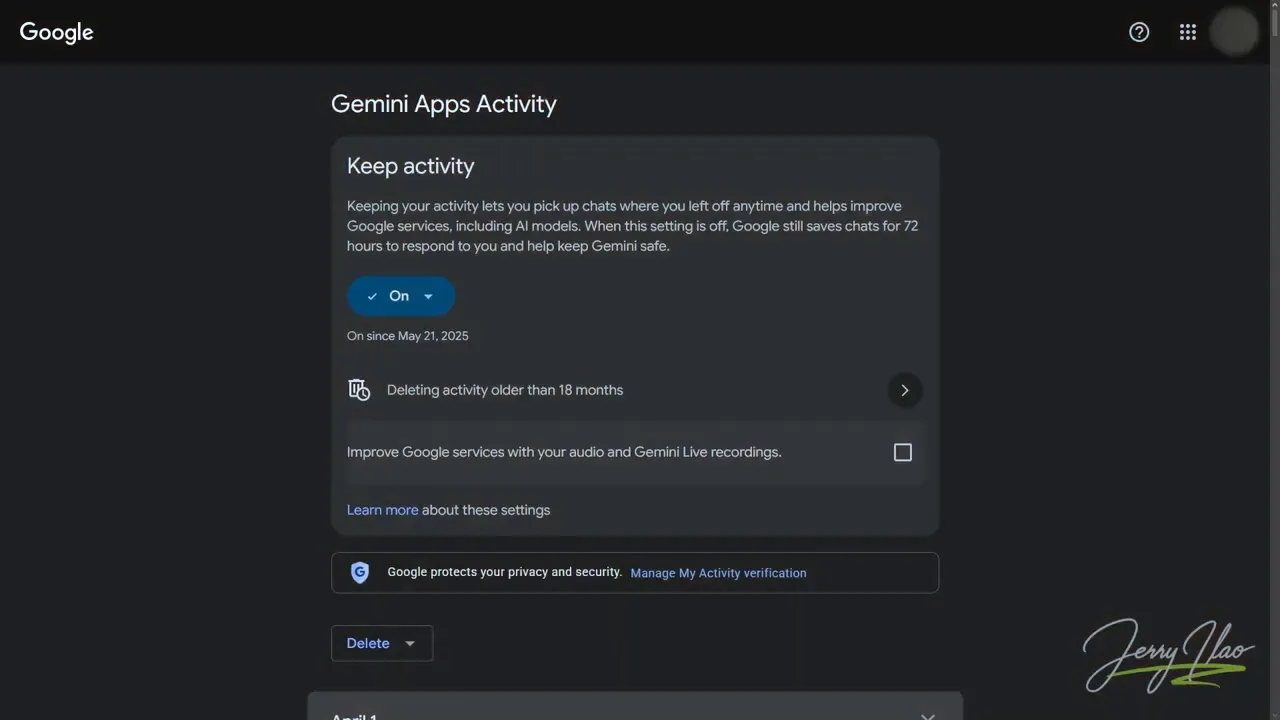
- Google Gemini: Go to the Google activity controls page and switch off Gemini Apps Activity.
These changes only take a few seconds each, but they close one of the biggest privacy gaps in day to day AI use.
If your team is already using multiple AI tools, make this part of your standard setup checklist. Otherwise, your company may be sharing far more than it realizes.
2. Set up Custom Instructions so ChatGPT knows your business
Privacy is only half the issue. Even with safe settings, ChatGPT will produce generic answers if it has no idea who you are, what kind of business you run, or how you prefer responses.
That is where Custom Instructions become valuable.
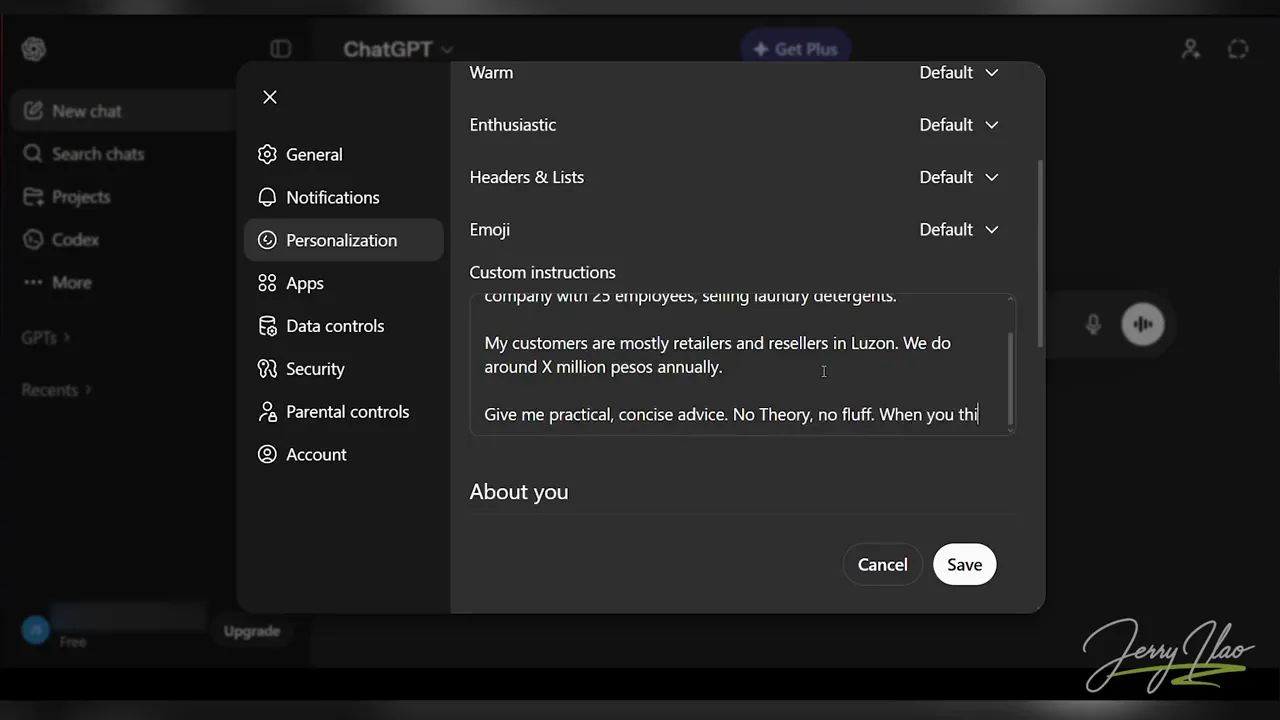
In ChatGPT, go to Settings, then Personalization, then Custom Instructions. This lets you define your business context once so you do not have to keep repeating it in every new conversation.
A strong setup usually includes details like:
- Your role in the company
- Your industry
- Business size or team size
- Type of customers you serve
- Your market or geographic focus
- Your preferred communication style
- How you want recommendations structured
For example, a business owner might specify that the company is a Philippine distribution business with a certain number of employees, serving retailers and resellers in a specific region, and that answers should be practical, concise, and presented in numbered steps when planning is involved.
You can also define style preferences. If you want direct feedback, say so. If you want business implications included in analyses, say so. If you prefer Taglish, say so. If you want answers without certain punctuation habits often associated with AI writing, you can specify that too.
The more specific the instructions, the better the responses. Instead of starting cold every time, ChatGPT starts with your preferred context already in place.
What to include in your Custom Instructions
If you are unsure what to write, focus on these categories:
- Company profile: industry, size, products, services, and customer type
- Operating context: region, market conditions, and common business constraints
- Communication preference: concise, practical, formal, direct, bilingual, or structured
- Decision preference: recommendation first, then reasons
- Output preference: bullet points, numbered steps, comparisons, or action plans
This one change often improves usefulness immediately because the AI no longer responds as if every question is coming from a generic user.
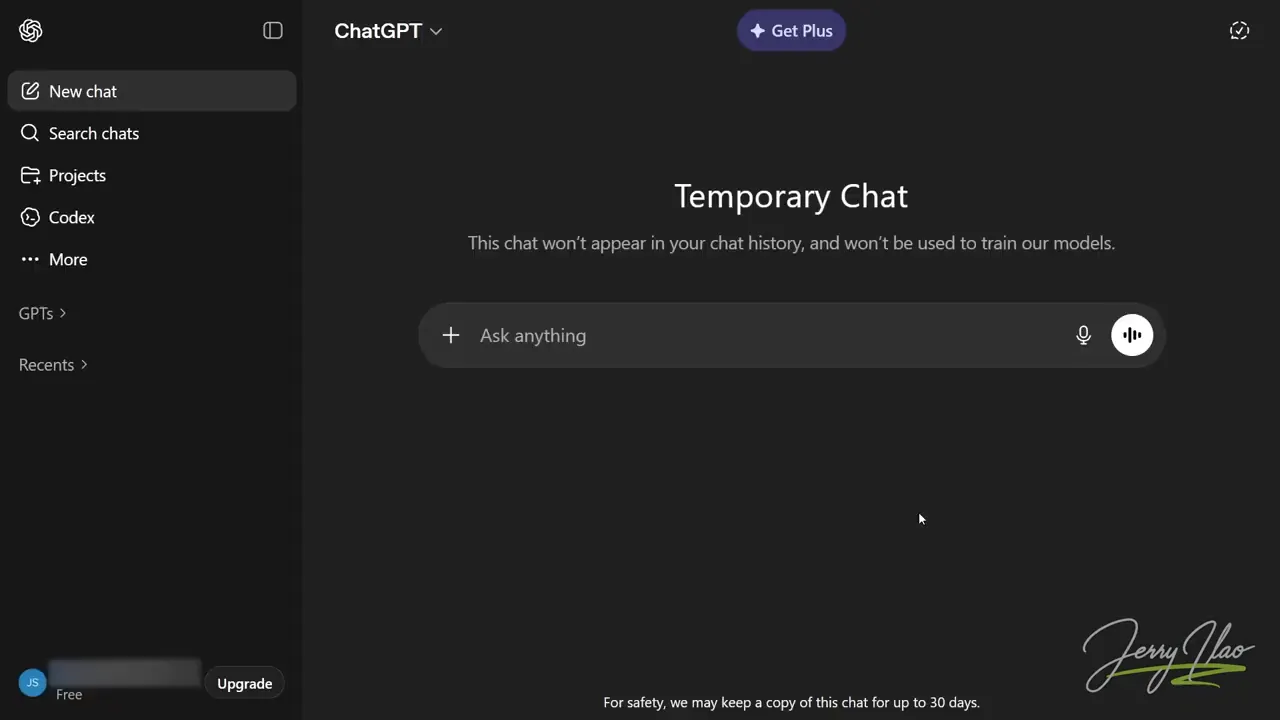
3. Use Temporary Chat for sensitive conversations
Even after disabling training and setting Custom Instructions, some conversations deserve extra caution.
That is where Temporary Chat helps. When enabled in a new ChatGPT conversation, it keeps the discussion out of regular chat history and out of memory. It also avoids the risks associated with forgotten settings.
Think of it as the AI equivalent of private browsing.
Temporary Chat is especially useful for topics such as:
- Pricing strategies
- Employee performance reviews
- Legal questions
- Supplier negotiations
- Financial data
- Draft contracts or internal policies
A practical rule works well here:
- Normal chat: routine drafting, brainstorming, summarizing, and low risk work
- Temporary Chat: anything confidential, sensitive, or strategically important
It only takes one click, but it adds an extra layer of control when the stakes are higher.
4. Manage ChatGPT Memory so old information does not corrupt results
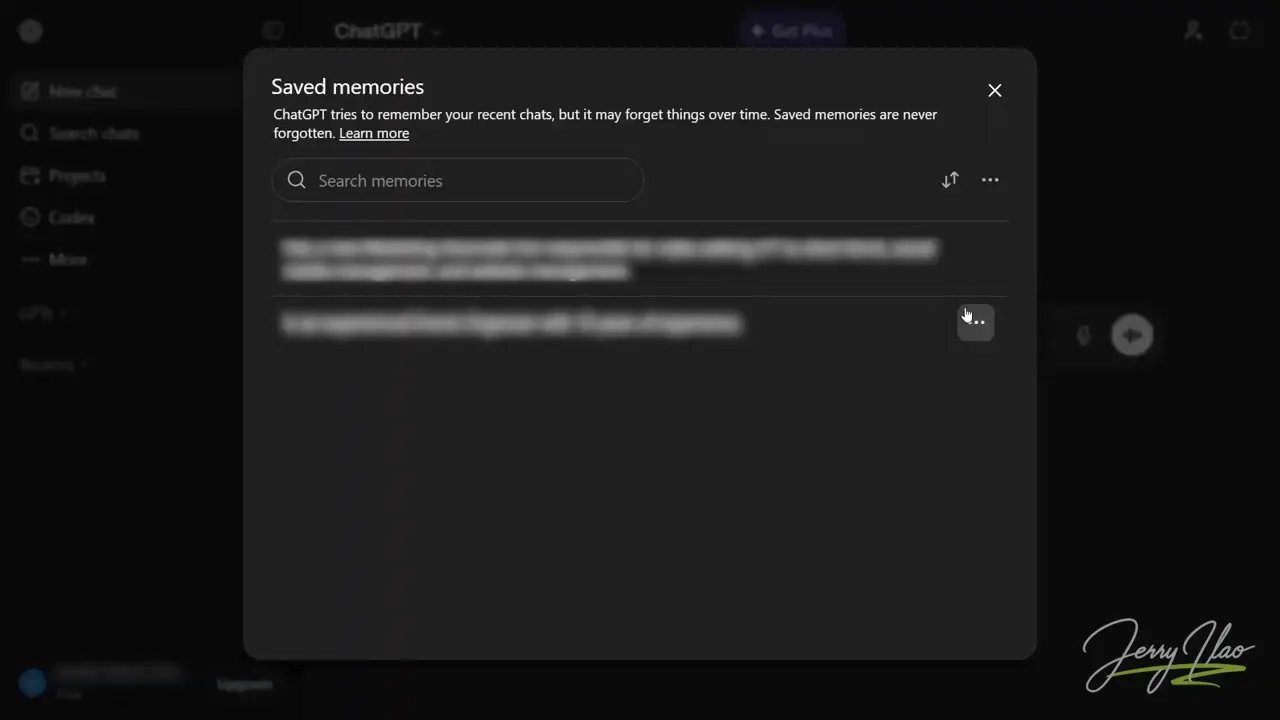
ChatGPT’s memory feature can be powerful. Over time, it can remember preferences, recurring projects, and details about how you work. Used well, that makes the tool feel more like an assistant and less like a blank slate.
But there is a catch. Memory is only useful when it is accurate.
If ChatGPT remembers outdated information, it may keep giving flawed answers. For example, it might assume you are still working on an old initiative, serving an old market, or operating under assumptions that no longer apply.
To review memory, go to Settings, then Personalization, then Memory, and open the management panel. Check what the system believes it knows about you and remove anything that is no longer relevant.
Examples of memory entries worth deleting include:
- Old projects
- Previous job roles
- Past company priorities
- Outdated products or services
- Information that no longer reflects your current business
A monthly review is a smart habit. You do not need to turn memory off entirely. In fact, keeping it on can be beneficial. The goal is not to erase it, but to keep it clean and current.
Well managed memory improves continuity. Poorly managed memory creates repeated mistakes.
5. Choose the right model for the right task
The last setting is less about privacy and more about output quality. Many people simply use whatever model appears by default. That is a missed opportunity.
AI tools increasingly offer at least two broad modes. In ChatGPT, the distinction is often between a faster option and a more thoughtful one. Similar ideas appear in other tools under names like fast and thinking.
The simplest way to understand this is through roles:
- Fast or Instant model: like a junior consultant who works quickly and handles routine tasks well
- Thinking model: like a senior consultant who takes longer but provides deeper analysis and better judgment
Use the fast model for routine work
The fast model is ideal when speed matters more than deep reasoning. It works well for:
- Drafting follow up emails
- Rewriting product descriptions
- Summarizing long reports or articles
- Creating social media captions
- Translating English into Taglish
- Writing simple internal memos
These are everyday tasks where quick output is usually good enough.
Use the thinking model for strategy and analysis
When the job requires interpretation, comparison, or judgment, switch to the thinking model. This is the better choice for:
- Reviewing financial trends
- Comparing proposals and recommending one
- Building a marketing plan
- Analyzing why sales dropped
- Preparing negotiation strategy
- Drafting complex client proposals with multiple requirements
These tasks benefit from deeper reasoning. The extra time is often worth it because the quality difference can be significant.
Before sending a prompt, ask one question: Is this a quick task or a thinking task? That simple habit can improve results immediately.
A simple framework for safer and smarter business AI use
If you want a practical operating framework, use these five settings as a checklist:
- Turn off model training to reduce data exposure.
- Set Custom Instructions so outputs reflect your business context.
- Use Temporary Chat for confidential discussions.
- Review memory monthly so old assumptions do not distort new answers.
- Match the model to the task so you get the right balance of speed and depth.
Together, these changes answer the question is ChatGPT safe for business in a practical way. The tool can absolutely be useful in a business setting, but safe and effective use depends on deliberate configuration.
What to do first
If you only do two things today, make them these:
- Open ChatGPT and turn off Improve the model for everyone.
- Set up your Custom Instructions with clear business context.
Those two steps alone reduce risk and improve relevance. Then, over the next few days, add Temporary Chat to your workflow, clean up memory, and become more intentional about model selection.
The full setup can be done in minutes, but the impact carries into every future conversation.
FAQs:
Is ChatGPT safe for business use?
Yes, ChatGPT can be safe for business use if you change the default settings. The most important step is disabling model training for your conversations. After that, use Temporary Chat for sensitive topics and avoid pasting confidential information casually.
What is the most important ChatGPT setting for businesses?
The most important setting is turning off Improve the model for everyone. This helps prevent business conversations from being used to improve future AI models.
Should businesses use ChatGPT Temporary Chat?
Yes. Temporary Chat is a smart choice for pricing discussions, employee evaluations, legal questions, supplier negotiations, financial information, and other confidential topics. It adds a stronger layer of privacy for sensitive work.
How often should ChatGPT memory be reviewed?
A monthly review is a practical schedule. Remove outdated projects, previous roles, and any information that no longer reflects your current business. Accurate memory improves output. Inaccurate memory creates repeated errors.
What is the difference between fast and thinking AI models?
Fast models are better for routine tasks like drafting, summarizing, and rewriting. Thinking models are better for analysis, strategy, decision support, and work that requires judgment. Choosing the right model improves both speed and quality.